SQL Sage documentation
Install the AI assistant for SQL Server Management Studio in two minutes, sign in inside Claude Code or the Codex CLI with the Claude or ChatGPT account you already have, and start diagnosing and writing T-SQL right where you work.
On this page
- Requirements
- Install (2 minutes)
- Sign in
- Everyday use
- Free tools (no AI)
- SQL Sage History
- What's blocking now
- SQL Sage Search
- Find usages of column
- Related tables after JOIN
- Check this database
- F5 Guard
- Format, expand, qualify, execute
- Keyboard shortcuts
- Free and Pro
- Getting started, trial & licence
- The chat: Agent & Ask
- Connect repository (preview)
- Explain error
- Change-Impact, Incident Mode, Prove-It
- Is this slower than before?
- Audit log & Export evidence
- Mask names
- Inline completions (Alt+.)
- Diagnostics & health
- Safety & privacy
- Skills
- Troubleshooting
- Update & uninstall
- For IT and administrators
- Licensing FAQ
- Privacy FAQ
01Requirements
- SQL Server Management Studio 22 on Windows, installed in its standard folder,
C:\Program Files\Microsoft SQL Server Management Studio 22. The extension is declared for x64 and Arm64. SQL Sage has been tested on x64 and on a Windows Arm64 computer. SSMS 21 and earlier are not supported by this version. An SSMS 22 installed in another folder is not found: the installer says so and stops without installing anything (For IT). - Administrator rights to install (it writes to Program Files, standard for SSMS extensions).
- For the AI features (the trial, or a licence): Claude Code or the Codex CLI installed and signed in — that's how SQL Sage reaches the AI on your own account. Getting started in the panel and the home page show how to install them. (Advanced: you can instead set your own Anthropic API key — BYOK.)
The Free tools (sections 05–14) need neither: they make no AI calls, so they work without Claude Code, the Codex CLI or an API key. What needs what is listed in Free and Pro.
02Install (2 minutes)
- Download SqlSageSetup.exe.
- Close SSMS.
- Run the installer and approve the UAC prompt.
- Open SSMS again — the SQL Sage panel opens automatically (or use View → Other Windows → SQL Sage).
03Sign in
In the panel's status bar, pick a provider and sign in:
- Claude — via Claude Code. Click Sign in with Claude; finish in the console window that opens, then Refresh.
- OpenAI — via Codex CLI. Click Sign in with OpenAI.
- Advanced (own key) — paste an Anthropic API key (stored encrypted with DPAPI, never in plaintext).
On the two CLI channels SQL Sage never sees, stores, or transmits your credentials — it only asks the CLI whether you're signed in. An own key is the exception: it is stored on your machine, DPAPI-encrypted, as above. Choose the model and reasoning effort with the button at the bottom of the chat (for example Opus · Auto); your history is kept when you switch provider or model.
04Everyday use
Chat in the context of your connection
The chat is locked to one server and database, shown at the top at all times, so answers know which engine, version and database they're about. Pin the chat to a specific query window (📌) when you work across several servers.
Right-click actions
Select T-SQL in a query window, right-click → Ask SQL Sage ▸ Explain / Fix / Optimize / Document (or press Ctrl+Alt+Shift+E/F/O/D). The chat opens with your SQL already in context — no copy-paste. The same actions are also under the Tools menu.
Explain a failed query
When a query fails, a bar at the top of that window offers Explain error (or right-click → Ask SQL Sage ▸ Explain last error). SQL Sage first shows what your database's catalog proves — on SQL Sage Free too — then, with a licence, the AI explains the cause and returns a fixed query. Details, and what is sent: Explain error.
Slash commands
Type a command at the start of the message box and press Send; the / button next to the box lists the common ones. Text after a command is added to its instruction, for example /optimize keep the same row order. A word after / that SQL Sage does not know is sent as you typed it.
| Command | What it does | AI |
|---|---|---|
/explain | Explains what the SQL does, step by step, and calls out anything surprising, expensive or risky | Yes |
/optimize | Suggests indexes and rewrites, with the reasoning and the improved query | Yes |
/fix | Finds and fixes the problem in the SQL and returns the corrected query | Yes |
/doc | Adds explanatory comments to the SQL | Yes |
/impact | Before the SQL runs: what it changes, what depends on those objects, the rows affected and the risk, from the change-impact tool. The SQL is not run. See Change-Impact. | Yes |
/querystore or /qs | Reports the top regressed and most expensive queries of the current database from Query Store, read-only | Yes |
/format | Formats the attached or selected SQL on this computer with the T-SQL parser and shows it in the chat; no tokens | No |
/effort <level> | Sets the reasoning effort for the next answer only, for example /effort high; nothing is sent (see The chat) | No |
/help | Lists these commands in the chat | No |
The AI commands act on the query attached to the chat: the active query window's text or your selection. They are chat answers, so they need a licence or the trial. /help, /format and /effort are answered on this computer; /help and /format also work on SQL Sage Free.
SQL block toolbar
Every SQL block the assistant writes carries a READ / WRITE / DDL badge and one-click Copy · Insert · New query · Run · Format. Insert is never Run — putting text in your editor and executing it are two different buttons.
Read from your results (opt-in)
Off by default. Turn on Include results under the privacy shield next to Send, then right-click → Explain copied results (send exactly what you copied from the grid) or Attach query results (re-run). The first send per session asks for explicit consent showing the row/column count and that data will leave your machine. How that consent works: Include results.
05Free tools (no AI)
The tools in sections 06–13 are part of SQL Sage Free: they keep working after the trial and without a licence. They make no AI calls, so they also work when Claude Code or the Codex CLI is not installed or not signed in, and they send nothing to the AI. What they read from the server — catalog metadata and server state — they read with your query window's own sign-in. Apart from Execute current statement, which is your own F5, none of them runs your SQL.
| Tool | Open it with |
|---|---|
| SQL Sage History | Ctrl+Shift+X in a query window, or View › Other Windows › SQL Sage History |
| What's blocking now | Tools › SQL Sage Tools › What's blocking now, or the Now tab of SQL Sage History |
| SQL Sage Search | Ctrl+Alt+D, or Tools › SQL Sage Tools › Find object… |
| Find usages of column | Shift+F12 on a column in SQL Sage Search |
| Related tables after JOIN | Type JOIN and a space, then pause |
| Check this database | Tools › SQL Sage Tools › Check this database |
| F5 Guard | On by default: press F5 on a risky script |
| Format, expand, qualify, execute | Right-click in a query window › SQL Sage Tools |
Everything under SQL Sage Tools is in two places: the right-click menu of a query window and the Tools menu. The paid AI actions sit next to it under Ask SQL Sage.
06SQL Sage History
SQL Sage History keeps the queries you run in SSMS query windows, so you can find one again and reopen it. It also keeps the query tabs you close without saving. Everything stays on this computer, encrypted for your Windows account.
- Open: Ctrl+Shift+X in a query window, View › Other Windows › SQL Sage History, or SQL Sage Tools › SQL Sage History (right-click menu or Tools).
- Plan: Free, also after the trial. A few actions on one entry need a licence (see below).
- Sent to the AI: nothing. History is never added to a chat, and no AI tool can read it.
What it records
Every run you start with F5 or Execute in a query window: the SQL text as it ran, the server, database and login, the time, the status, the duration, the rows returned and the class (READ, WRITE, DDL, or UNKNOWN when the SQL cannot be classified). Query results are never saved.
- Status is Succeeded, the SQL Server error number of a failed run (for example Msg 207), Cancelled, Timed out or Stopped.
- Duration is the wall-clock time in SSMS, including showing the results — not the server's CPU or elapsed time.
- Rows counts the rows the result sets returned, as the SSMS status bar counts them. Rows changed by INSERT, UPDATE or DELETE are not counted.
Find and reopen a query
- Open the window. From a query window it opens filtered to that window's server and database, shown as a chip you can remove (✕) to see every server. The cursor is in the search box, and Esc takes you back to your query window.
- Type in the search box. Every word must match, in the SQL text, the server name or the database name. Narrow it further with the filters: status (Succeeded, Failed, Cancelled / timed out), class (READ, WRITE (and unknown), DDL) and period (Today, Last 7 days, Last 30 days). ↓ or Enter moves from the search box to the list.
- Select an entry to see its whole SQL. Then use Open in new window (Enter), Insert at cursor (Ctrl+Enter), Copy SQL (Ctrl+C) or Delete (Del, with Undo). The right-click menu also has Copy server name and Stop recording this server.
Open in new window never runs anything. It puts the SQL into a new query window. That window is connected only when your active query window is connected to the same server: SQL Sage copies that connection and switches to the entry's database. Otherwise the new window opens not connected. A bar at the top of the new window says where the query ran and whether this window is connected, so you can check the server and database before you press F5. Running a query again is always your own F5.
Recently closed (unsaved)
Closed a query tab without saving it? Open the Recently closed (unsaved) tab of SQL Sage History. When you close a SQL query tab that has unsaved changes, SQL Sage keeps its text (up to about 1 million characters), the tab name and the server and database it was connected to. Saved, unchanged and empty tabs are not kept. Select one and use Open in new window (Enter), Copy SQL or Remove (Del, with Undo). Nothing is reopened, connected or run by itself. Closed tabs are kept for as long as History keeps queries (30 days by default), and only the last 50.
Passwords and secrets are masked
Before anything is written to disk, in run history and closed tabs alike, SQL Sage replaces only secret values with ?. The rest of your script is kept exactly as you typed it. What counts as a secret:
- the value after
PASSWORD =,SECRET =and similar options in statements such asCREATE LOGIN,CREATE CREDENTIAL,CREATE MASTER KEYorBACKUP … PASSWORD; - password arguments of system procedures such as
sp_addlinkedsrvloginorsp_addlogin, and every literal argument ofxp_cmdshelland job-step procedures; - the pass phrase of
ENCRYPTBYPASSPHRASE,DECRYPTBYPASSPHRASEand similar functions; - a literal that reads like a connection string (
Pwd=,Password=,AccountKey=,sig=), and a comment that mentions a password or a secret; - a value assigned, in the same batch, to a variable that is used in one of these places or is named like a password (
@pwd,@password,@secret).
When a text mentions a secret but cannot be masked safely, its SQL is not saved at all; the entry says “The text was not saved: it may contain a password.” What masking cannot catch: a secret assigned in another batch or another run than where it is used, or assembled in dynamic SQL without any keyword.
Retention, pause and off
- Retention: queries are kept 30 days by default. In the window's ⚙ Settings, Keep queries for offers 30, 90 or 180 days or No time limit. A size limit always applies: about 10,000 queries or 64 MB. A script longer than 256K characters is kept cut short, and the entry says so.
- Pause: ⏸ Pause stops recording for this SSMS session; it comes back on the next time SSMS starts. While paused, closed tabs are not kept either.
- Exclude servers: Never record these servers takes server names;
*matches anything. - Off: unticking Save query history deletes the saved history, including the recently closed tabs, after you confirm. Clear history… deletes everything and leaves recording on. Deleted files were encrypted; deleting them is not a secure erase.
History is a convenience, not an audit trail; the audit log is described in Audit log & Export evidence.
For administrators: machine policy
An organisation can control History for every user of a computer with two DWORD values under a key that ordinary users cannot write. SQL Sage reads them when SSMS starts.
HKLM\SOFTWARE\Policies\LumaSoft\SqlSage
  DisableQueryHistory            REG_DWORD  1   History off; the saved history and closed tabs are deleted
  MaxQueryHistoryRetentionDays   REG_DWORD  N   keep history for at most N days
DisableQueryHistory: any value other than 0 turns History off whatever the user chose. Nothing is recorded, recently closed tabs are not kept, what was saved before is deleted, and the JOIN list learns no joins from History. The window says “Turned off by your organization (machine policy).”MaxQueryHistoryRetentionDays: a positive number caps the retention. A user who chose a longer period, or No time limit, keeps entries for at most that many days, and the settings say “Your organization keeps history for at most N days.” The same limit applies to recently closed tabs.- A missing value, or 0, means no policy.
Free and Pro
Recording, search, filters, reopening and Recently closed are Free. On one selected entry, the actions marked (Pro) need a licence: Why is this slower than last time? (AI), Prove ≡ with the editor's query (no AI) and the Query Store card Is this slower than before?. Explain error on a failed entry shows the local catalog check on Free; the AI explanation needs a licence. An AI action sends only that one query, after showing you exactly what will be sent.
07What's blocking now
A query hangs and you want to know who is blocking whom, right now. The Now section of SQL Sage History reads the server's sessions and shows the blocking chains and the long open transactions — including an idle session that left a transaction open, which is easy to miss because nothing is running.
- Open: Tools › SQL Sage Tools › What's blocking now, or the Now tab of SQL Sage History. It reads the server of your active query window.
- Plan: Free. Explain with AI needs a licence.
- Sent to the AI: nothing, unless you click Explain with AI.
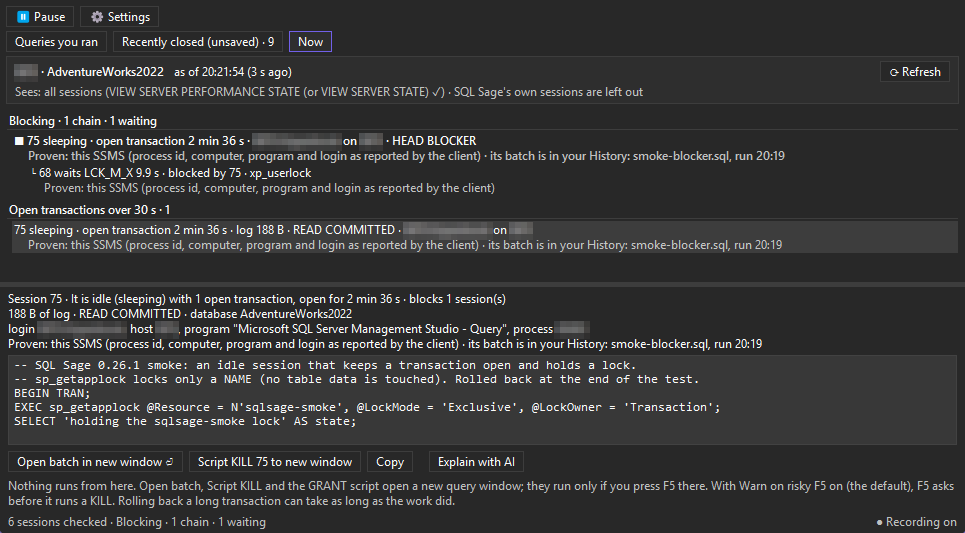
- Open it. The header names the server and database, the time of the snapshot (as of 14:32:05 (8 s ago)) and what your login can see. SQL Sage's own sessions are left out.
- Read the chains. Each head blocker is marked HEAD BLOCKER, with the sessions waiting on it, their wait type and how long they have waited. A cycle is marked as one. Below them: open transactions over 30 s, with their age, log use and isolation level.
- Select a session to see its batch and details. Open batch in new window (Enter), Script KILL to new window, Copy (Ctrl+C, the snapshot as text) or Explain with AI (Pro).
- Press Refresh to read again. Nothing refreshes by itself.
Is it yours?
Each session that is probably yours says how sure SQL Sage is:
- Proven: this SSMS — the process id, computer, program and login that the client reported match this SSMS.
- Inferred: matches your History — same server, database, login and batch text as an entry in your History.
- Your login on this computer, from another program — a fact, not a claim that it is yours.
No label means no evidence either way; Now never says a session is not yours.
Nothing runs from here
Open batch, Script KILL and the GRANT script each open a new query window and run nothing; they run only if you press F5 there. The KILL script is guarded: it kills the session only if it is still the one that logged in at the time shown, because session ids are reused. When SQL Sage did not get the session's login time, it does not write a KILL script. With Warn on risky F5 on (the default), the F5 Guard asks before a KILL runs. Remember that a KILL rolls back the session's open transaction, and the rollback can take about as long as the work did.
Honest limits
- Permissions. To see other sessions, your login needs
VIEW SERVER STATE(on SQL Server 2022 and later,VIEW SERVER PERFORMANCE STATEis enough). Without it, SQL Server silently shows only your own session, so Now says blocking is unknown, not zero and offers Copy GRANT script to new window for a DBA to review and run. SQL Sage never runs it. - Azure SQL Database. With
VIEW DATABASE STATEit sees this database's sessions, but running requests are visible only for your own connection, so a blocked session may be missing. Now says so instead of claiming there is no blocking. - Slow server. Each read waits at most 5 seconds. If the server does not answer, Now says so (Inferred: the server didn't answer) and that blocking is unknown.
- Size. At most 200 sessions are read; when the cap is reached, the status line says so.
Explain with AI (Pro) sends the frozen snapshot to the SQL Sage chat after showing you exactly what will be sent, masked by your privacy settings; it does not read the server again.
08SQL Sage Search
One window to find tables, views, procedures, functions, triggers, synonyms and columns by name — and text inside the definitions of views, procedures, functions and triggers — across every database on the server.
- Open: Ctrl+Alt+D, Tools › SQL Sage Tools › Find object… (also on the right-click menu of a query window), or View › Other Windows › SQL Sage Search.
- Plan: Free.
- Sent to the AI: nothing. The window's footer says it: Reads catalog metadata only · nothing sent to AI.
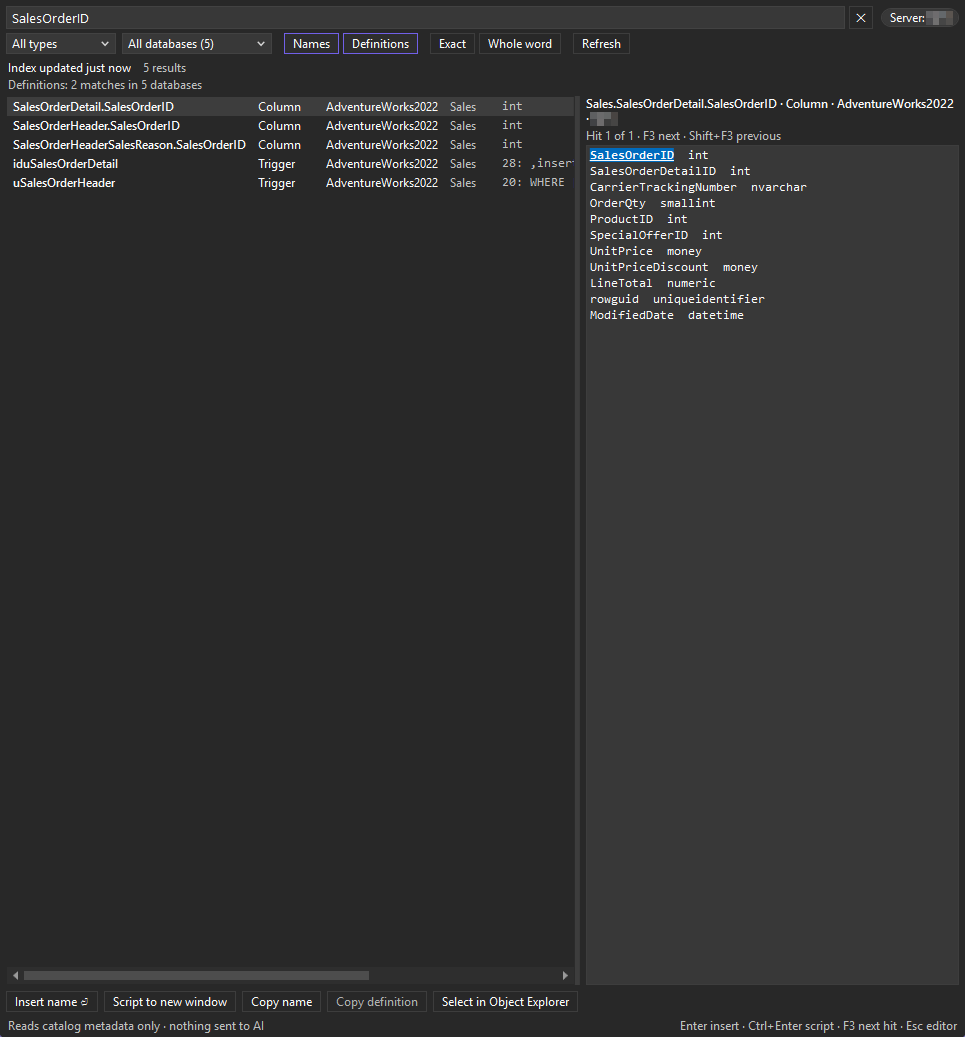
- Open it from a connected query window: it searches that window's server. The window follows your active query window by itself, with one exception: while a search is on screen it never switches server silently, but offers Use <server> instead.
- Type at least 2 characters. Several words must all match, and accents don't matter. ↓ moves to the results.
- Choose what to search: Names (object and column names, searched in memory) and Definitions (the text of modules, searched on the server). Exact and Whole word narrow the match. A type filter and a database filter (All databases) sit on the left.
- Select a result to preview its columns or its definition with every hit highlighted (F3 next hit, Shift+F3 previous).
- Act on it: Insert name (Enter) puts the quoted name at the cursor of your query window, three-part when the object is in another database; Script to new window (Ctrl+Enter) opens its script in a new query window connected to the object's database; Copy name (Ctrl+C), Copy definition and Select in Object Explorer. Scripting an object never runs it. Esc takes you back to your query window.
The index
When Search first opens on a server, it reads the names in every database it can read. The status line shows the state: Indexing 12/140 databases · partial while it reads, then Index updated 4 min ago. Refresh checks every database for changes and reads only the changed ones again. The index is kept in memory for the SSMS session, for the 3 most recently searched servers; nothing is written to disk.
Honest limits
- Databases it cannot read are listed, not skipped silently. N databases skipped ▸ shows each one with its reason: not online, a database snapshot, single user, no access, or AUTO_CLOSE on (reading it would wake it up).
tempdbandmodelare never indexed;masterandmsdbare. - Definitions that are encrypted or that your login cannot see (no
VIEW DEFINITION) are counted as definition unavailable. - On a very large database the column names may be left out of the index (size limit); the status line says how many databases that affects.
- At most 500 results are shown; type more to narrow the list.
- Ctrl+Alt+D steps aside when Redgate SQL Search is installed; the menu entries always work.
09Find usages of column
Before you change or drop a column, see which procedures, functions, views and triggers write it and which only read it, as SQL Server records it in its dependency catalog.
- Open: in SQL Sage Search, select a column and press Shift+F12, right-click it › Find usages of column, or use Reads/writes ▸ in the preview. For a table or view, pick a column in the preview first. Alt+← or ◂ Back returns to the search results.
- Plan: Free.
- Sent to the AI: nothing. It runs only when you ask, reads the dependency catalog of the column's database and changes nothing.
What the answer shows
The modules are grouped into Writes, Reads and Not determined, with a filter for each. Every row says what the module does with the column (for example writes the column, reads the column via *) and how sure that is:
- Proven — SQL Server's binder reported the exact table and column cleanly.
- Unresolved — SQL Server could not clear it. For example a DELETE or a MERGE that writes the table without SQL Server naming the column is shown under Writes as writes this table; the column is not reported by SQL Server. A module SQL Server could not analyse, a use through a synonym or dynamic SQL that names the table goes under Not determined.
Tags add detail: also reads, writes all columns (an INSERT without a column list), runs on every write (a trigger on the table), via synonym, dynamic SQL. When unsure, a module is kept in the list rather than left out.
What “not checked” means
An empty or short list never means “nothing writes this column”. Every answer lists what it did not cover:
- Dynamic SQL — only modules whose text names the table next to
EXEC(orsp_executesqlare flagged, and those are not analysed. - Application and ORM code — SQL Server cannot see it.
- Other databases — only the column's own database is analysed.
- Modules over the limit of 200, or not reached within 15 seconds per database, and writes through views that are not followed.
You can Cancel a long analysis; what was found so far stays, marked partial. Answers are kept in memory for the SSMS session and read again when the database changes.
10Related tables after JOIN
Type JOIN and pause: SQL Sage lists the tables related to the ones already in your statement, each with an alias and the full ON clause. Right after FROM and a table name, it can also suggest a short alias in grey text.
- Open: automatic, in a query window connected to a database, about 300 ms after you stop typing.
- Plan: Free.
- Sent to the AI: nothing. It reads catalog metadata only.
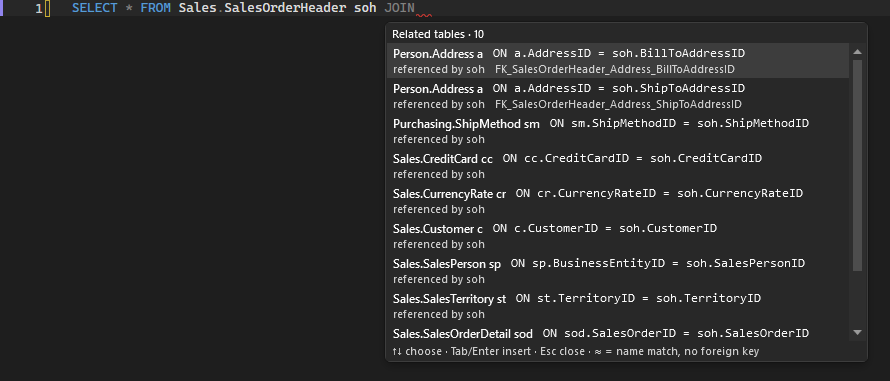
JOIN, from the foreign keys of Sales.SalesOrderHeader.- Type
JOIN(orLEFT JOIN,INNER JOIN…) and a space, then pause. The list appears under the cursor. - Choose with ↑ ↓ (PgUp PgDn). Tab or Enter inserts the table, its alias and the whole
ONclause as one edit; Esc closes the list until the next JOIN. Type a letter instead and SSMS IntelliSense takes over. - If the row also gives the table in
FROMan alias, the list's footer says so before you press Tab. Both changes go in as one edit, so one Ctrl+Z undoes both.
Where the suggestions come from
- Foreign keys, in both directions; multi-column keys are joined with
AND. - Joins you have run before, marked ↺ used N×: learned from your own SQL Sage History on this computer, for the same server and database. They rank after foreign keys and before name matches. While History is paused, off, or excluded for that server, no joins are learned.
- Matching key column names where no foreign key is declared, always marked ≈ by name and never preselected. Turn these off with Include name matches.
- A table name without a schema resolves the way SQL Server resolves it: your default schema, then
dbo. When the list cannot help, it says why in one line instead of showing nothing.
The grey alias after FROM
After FROM, a table name and one space, SQL Sage can show a short alias in grey text, for example Registration r. Tab accepts it as one edit; any other key dismisses it and leaves your text untouched. It appears only in a SELECT, never when the statement already uses the table name before a dot (Registration.Id, where an alias would break the query), and never next to a CTE, a derived table, a table variable, a table-valued function or APPLY. The same rules decide when accepting a JOIN row may alias the table in FROM.
Settings and other add-ins
- In the SQL Sage panel's Settings, under Editor: Suggest related tables after JOIN is Auto (default), On or Off. Aliases on JOIN insert is Add when safe (default) or Follow the statement, which never changes
FROMand turns the grey alias off. - It steps aside so suggestions are not doubled. While the SSMS IntelliSense list may be on screen, neither the list nor the grey alias appears. In Auto, the list stays off when Redgate SQL Prompt or Devart dbForge SQL Complete is installed (choose On to show it anyway). The grey alias stays off when either of them is installed, and steps aside while GitHub Copilot's completions are active in SSMS (or, with Copilot installed, when that cannot be checked).
- The list needs the database's catalog in memory. In a window just connected, the first JOIN may show nothing while SQL Sage reads it.
11Check this database
A one-click, read-only health check of the database in your active query window, which tells you what changed since the last check.
- Open: Tools › SQL Sage Tools › Check this database (also on the right-click menu of a query window). The result appears in the SQL Sage panel.
- Plan: Free. Asking the AI to explain a finding needs AI in your plan (trial or licence).
- Sent to the AI: nothing. With AI in your plan, a request to explain the top finding is placed in the chat box, and nothing is sent until you press Send.
- Activate a query window connected to the database you want to check, then choose Check this database.
- SQL Sage runs a fixed set of read-only queries (written by us, never by a model): risky database options, parallelism and scoped configuration, the top missing indexes, the most-modified statistics, fragmentation, and — on SQL Server and Managed Instance — backups of this database, failed Agent jobs in the last 24 hours and memory pressure.
- Each finding is shown with its evidence. From the second check of the same database on, a line says what changed: Since the last check (3 days ago): 1 new, 1 resolved, 2 unchanged, and new findings are marked New.
Honest limits
- Fragmentation is measured only for the 20 largest rowstore indexes, and is information only: a rebuild decision should not rest on a fragmentation number alone.
- Each section is best-effort: a missing permission, a timeout or the check's time limit affects only that section. Findings of a section that did not finish are not compared with the last check, and the comparison line says how many.
- On Azure SQL Database there are no backup, Agent job or instance memory sections.
- For the comparison, SQL Sage keeps one small file per database under
%LOCALAPPDATA%\SqlSage\health-checks\. Its name is a hash, and it holds finding ids, severities and numbers only — no server, database or object names.
For more checks, ask in the chat (see Diagnostics & health).
12F5 Guard
Before a risky script runs, the F5 Guard stops and asks. A read-only query runs at once, without a prompt.
- Turn on or off: Warn on risky F5 under the privacy shield next to Send in the SQL Sage panel. On by default.
- Plan: Free. Show impact in the warning needs a licence.
- Sent to the AI: nothing. The analysis is local.
What it asks about
When you press F5 or Execute in a query window, SQL Sage reads what SSMS is about to run (the selection, or the whole window) and checks every statement with the same T-SQL parser SSMS uses. It asks before these:
DELETEorUPDATEwithout a WHERE clause (every row of the table);DROPof any object, andTRUNCATE TABLE;KILLof a session or a distributed transaction.KILL … WITH STATUSONLYonly reports rollback progress, so it does not ask.
The script is judged by its riskiest statement across all batches. Since 0.35.3 that includes scripts that repeat a batch with GO n (for example GO 5), which before then could hide a risky statement. Statements inside IF, BEGIN … END and TRY … CATCH blocks count too.
The warning
- A dialog shows DANGER, the reason (for example DELETE has no WHERE clause — it removes EVERY row in the target table.), the server and database the script will run against, and the SQL.
- Cancel is the default button: Enter or Esc does not run the script. Run anyway runs it.
- Don't warn again in this session, ticked together with Run anyway, silences the guard until SSMS restarts.
- Show impact (Pro) closes the dialog without running and places a change-impact request in the chat box; nothing goes to the AI until you press Send.
Audit entry. With Audit SQL on (the default), each warning is written to the local audit log with your decision (run or cancelled), the server, database and login, the risk and the SQL, with passwords and other secret values replaced by ?. The entry is written in the background, so F5 never waits for it.
Honest limits
- Ordinary writes —
INSERT,MERGE,UPDATE/DELETEwith a WHERE clause,CREATE/ALTER,EXEC— run without a prompt. - It cannot see inside a procedure you call or inside dynamic SQL:
EXEC dbo.PurgeAllorEXEC('DELETE …')does not ask. - A script that does not parse is not stopped; SSMS reports the syntax error itself.
- It guards F5 and Execute in SSMS query windows, including Execute current statement. It is not a permission system: anyone can switch it off.
13Format, expand, qualify, execute
Four editor commands under SQL Sage Tools (right-click in a query window, or the Tools menu). They are enabled when the active query window has text. Each change is one edit, so one Ctrl+Z undoes it, and it is applied only if your text did not change while SQL Sage worked on it. All four are Free and send nothing to the AI.
- Format SQL (Ctrl+K, Ctrl+Y) formats the selection, or the whole window. When SSMS has its own Format SQL command (SSMS 22.10 and later), SQL Sage uses it; otherwise it uses its own formatter, and SQL that does not parse is left unchanged. SSMS's own Ctrl+K, Ctrl+Q is never taken over.
- Expand wildcards (SELECT *) (Ctrl+B, Ctrl+W) rewrites
SELECT *andalias.*into the explicit column list. - Qualify object names (Ctrl+B, Ctrl+Q) adds the schema to unqualified tables and qualifies bare columns where that is unambiguous.
- Execute current statement (Shift+F5) runs only the statement under the cursor (with a selection, the selection), then puts the cursor back. It goes through SSMS's own Execute, so the F5 Guard still checks it.
Expand and Qualify work on the selection, or else on the statement under the cursor. They read the schema of the window's database: in a window that is not connected they say so in the status bar, and right after connecting they may ask you to try again in a moment while the schema loads. All of them keep GO lines exactly as written, including a repeat count such as GO 35.
14Keyboard shortcuts
The classic shortcuts below follow the keys many DBAs already know from Redgate tools. SQL Sage adds them when SSMS starts, and steps aside when another add-in owns them: the editor shortcuts are not added while Redgate SQL Prompt is installed (and are removed again if SQL Sage had added them), and Ctrl+Alt+D is not added while Redgate SQL Search is installed. A shortcut you changed or removed yourself is left alone. Every command stays in the menus either way. All of them except Ctrl+Alt+D work in a query window.
| Keys | What it does | Plan | Steps aside for |
|---|---|---|---|
| Ctrl+Alt+D | SQL Sage Search (Find object…), anywhere in SSMS | Free | Redgate SQL Search |
| Ctrl+Shift+X | SQL Sage History | Free | Redgate SQL Prompt |
| Ctrl+B, Ctrl+W | Expand wildcards (SELECT *) | Free | Redgate SQL Prompt |
| Ctrl+B, Ctrl+Q | Qualify object names | Free | Redgate SQL Prompt |
| Ctrl+K, Ctrl+Y | Format SQL | Free | Redgate SQL Prompt |
| Shift+F5 | Execute current statement | Free | Redgate SQL Prompt |
| Shift+Alt+Z | Ask SQL Sage: Explain selection | Pro (AI) | Redgate SQL Prompt |
| Shift+Alt+R | Ask SQL Sage: Fix selection | Pro (AI) | Redgate SQL Prompt |
| Ctrl+Alt+Z | Ask SQL Sage: Optimize selection | Pro (AI) | Redgate SQL Prompt |
These are always there (they are not classic shortcuts, so they never step aside):
| Keys | What it does | Plan |
|---|---|---|
| Ctrl+Alt+Shift+E / F / O / D | Ask SQL Sage: Explain / Fix / Optimize / Document the selection | Pro (AI) |
| Alt+. | Ask the AI for an inline suggestion at the cursor — only with Inline suggestions turned on in the panel's Settings (off by default). It sends the text around the cursor to your AI provider. | Pro (AI) |
| Tab | Accept the grey alias after FROM, insert the chosen row of the JOIN list (Enter works too), or accept an inline suggestion. With nothing on screen, Tab is an ordinary Tab. | Free (inline suggestions: Pro) |
| Esc | Dismiss the JOIN list, the grey alias or an inline suggestion | Free |
Inside the SQL Sage windows
| Window | Keys |
|---|---|
| SQL Sage History | Enter open in new window · Ctrl+Enter insert at cursor · Ctrl+C copy SQL · Del delete · ↓ from the search box to the list · Esc back to the query window |
| SQL Sage Search | Enter insert name · Ctrl+Enter script to new window · Ctrl+C copy name · F3 / Shift+F3 next / previous hit · Shift+F12 find usages of column · Alt+← back · Esc back to the query window |
| JOIN list | ↑ ↓ PgUp PgDn choose · Tab / Enter insert · Esc close |
A shortcut does nothing? Another add-in may own it (see above), or another command may already use the same keys; check the keyboard settings under Tools › Options. In an SSMS with a non-English user interface the classic shortcuts may not be added at all; the menu entries still work.
15Free and Pro
SQL Sage has two kinds of features. The Free ones keep working after the trial and without a licence. The ones marked (Pro) in the menus and windows need a licence, or the trial. SQL Sage Free makes no AI (LLM) calls: everything that sends something to an AI is Pro. Two Pro checks, Prove-It and Is this slower than before?, are worked out by code without any AI call, and they are paid all the same.
(Pro) is about the licence, not about one plan: every paid plan — Personal, Team 3 or Team 10, one-time or subscription — includes every Pro feature. The plans differ in the number of seats. A one-time licence includes every update through version 1.x (plus 2.0 if it ships within 12 months of your purchase); a subscription always includes the latest version. See pricing. AI usage is not included in any plan: the AI features run on your own Claude or ChatGPT plan, or on your own Anthropic API key.
| Feature | Plan | Section |
|---|---|---|
| AI chat, the Ask SQL Sage actions (Explain, Fix, Optimize, Document) and every AI explanation (Explain error, Incident triage, Why is this slower than last time?, Explain with AI in Now) | Pro | The chat |
| AI inline completions (Alt+.) | Pro | Inline completions |
| F5 Guard: a warning before a risky F5 | Free | F5 Guard |
| Related tables after JOIN, the JOIN … ON suggestion and the grey alias after FROM | Free | Related tables after JOIN |
| Format SQL | Free | Editor commands |
| Expand wildcards (SELECT *) | Free | Editor commands |
| Qualify object names | Free | Editor commands |
| Execute current statement | Free | Editor commands |
| Explain error: the proven part (the catalog check) | Free | Explain error |
| Check this database | Free | Check this database |
| SQL Sage History, with Recently closed (unsaved) | Free | SQL Sage History |
| SQL Sage Search | Free | SQL Sage Search |
| Find usages of column | Free | Find usages of column |
| What's blocking now | Free | What's blocking now |
| Change-Impact | Pro | Change-Impact |
| Incident Mode (the incident snapshot) | Pro | Incident Mode |
| Prove-It (Prove ≡) | Pro | Prove-It |
| Is this slower than before? (the Query Store card) | Pro | Is this slower than before? |
Not tied to a plan: the audit log and Export evidence, Mask names, the privacy switches and Copy diagnostics work in every plan.
16Getting started, trial and licence
The first time you open the SQL Sage panel it shows Getting started, a three-step checklist. A plan pill in the chat header shows your trial, Free or paid plan at all times.
- Open: Getting started again from the panel's Settings (⚙) › Getting started. Plan details: click the plan pill, or Tools › SQL Sage Tools › Plan & license.
- Plan: every plan.
- Sent to the AI: nothing. The licence check sends only the licence identifier, never the key, to our licence server, and nothing to an AI provider.
Getting started in three steps
- Check this database — Free, read-only, no AI, about 10 seconds. It needs a query window connected to a database (Check this database).
- Connect an AI — SQL Sage looks for Claude Code, the Codex CLI and a saved API key on this computer and offers three ways: a ChatGPT account via Codex, Claude Code (it needs a Claude plan that includes it), or your own API key (pay per use). It says what each one costs you and copies the exact install command; it never runs an installer for you.
- First answer — ask about this database, or start from an example.
Next to step 1, Getting started has buttons for three Free tools that need no AI: What's blocking now, SQL Sage Search (Ctrl+Alt+D) and SQL Sage History. They open the same windows as the menu commands and stay free after the trial, so you can use them before you connect an AI. On SQL Sage Free the list shows every Free tool and how to reach it.
Step 2 shows each of the three ways with what SQL Sage found, for example Claude Code not found on this computer., Codex CLI found - sign in with your ChatGPT account. or Ready - signed in., and a button for the next move: Copy install command, Open install page, Sign in to Claude Code, Sign in with ChatGPT or Set API key. A Codex CLI that is too old for its models is named with the version SQL Sage needs, next to Copy update command. The way the chat uses says Chat uses this.; another way that is ready offers Use this for chat. The one-time note that your schema and SQL go to an external AI provider is shown here, where you choose one, until you close it or send your first message to the AI.
While Getting started is on screen, an AI request from a Free tool's result — Explain the top finding, or an AI button in SQL Sage History — sends nothing if the chat's AI cannot answer yet (its CLI is not installed or is signed out, or your own API key has not been saved). The panel shows step 2 instead, with the line Connect an AI first: step 2 below. Nothing was sent.
To find them, SQL Sage looks for the CLI programs in the places listed under Claude Code or the Codex CLI is not found, asks each CLI's own sign-in status command, and for an API key checks only that one is saved. It never reads a token, a credential file or the key. After you install or sign in, come back to the panel: SQL Sage notices by itself. On SQL Sage Free, Getting started shows only step 1, because AI is not part of the plan.
The trial
The 30-day trial starts with your first AI answer, or 14 days after you first open the SQL Sage panel, whichever comes first. Until then everything is open, so installing early or using the Free tools does not use up trial days. A trial that started before version 0.28.0 keeps its dates. The trial includes every feature and needs no credit card. Setting the computer's clock back ends it.
When the trial ends, SQL Sage keeps working as SQL Sage Free: the Free tools stay, and the AI features and the Proven & Accountable checks need a licence (see Free and Pro). The same happens when a licence ends. There is no lock screen: the panel shows a SQL Sage Free card. After a trial it says Your 30-day trial has ended. The editor tools keep working, free., then what you used in the trial (for example In your trial: 23 AI answers · 2 proofs, only what is above zero), the Free tools, what a licence gives, the price for this version ($39 once (updates through 1.x) or $29/yr; the checkout shows your final price) and that AI usage is not included, because it stays on your own Claude or ChatGPT account. The card offers Buy SQL Sage first, then Enter license key.
The plan pill and its details
The plan pill reads, for example, Trial · starts with first AI answer, Trial · 12 days left, Pro, Pro · offline, 3 days or Free. Click it to see:
- the dates: when the trial starts at the latest or ends, License valid through a date for a subscription, or Perpetual license - no end date;
- On this computer: what you have done with SQL Sage — database checks, AI answers, errors explained, Prove ≡ runs, column lookups and regression checks — counted on this computer only; nothing is sent. It lists only what is above zero, and it is not shown until something has been counted;
- what is Free in every plan and what is Pro, with Buy SQL Sage and Enter license key. In the trial and on SQL Sage Free, the price for this version follows the Pro list, with the line that AI usage is not included and the licences on the pricing page: Personal, Team 3 or Team 10.
Enter a licence key
- Click Enter license key (in the trial banner, the plan details or the SQL Sage Free card).
- Paste the key from the purchase e-mail. If a SQL Sage key is on the clipboard, the window offers Use the key from the clipboard; it never activates it by itself.
- Click Activate. A problem is shown as one line in the window, for example when the key looks cut off. On success the window closes and the plan changes at once, with no restart.
The key is checked on this computer; SQL Sage then confirms its status online over HTTPS, sending only the licence identifier, never the key.
When the licence is checked online
SQL Sage checks an installed licence online over HTTPS when SSMS starts and loads SQL Sage, when the SQL Sage panel starts, after you enter a key and about every 12 hours while SSMS stays open, sending only the licence identifier. The check when SSMS starts runs even if you only use the editor and never open the panel; a panel that opens moments later uses its answer instead of asking again, and without a network the check is sent later, once Windows reports a network again. It also checks once more when the licence state changes — a subscription entering its offline grace period, or a paid plan that stops being paid — at most once every 10 minutes. The 12-hour and the extra checks are new in 0.36.0; earlier versions check only when the SQL Sage panel starts and after you enter a key. Up to 0.36.0 the first check waits until the SQL Sage panel starts.
A refunded or revoked licence stops the AI features from your next AI request; an answer that is already running is never interrupted. A renewed subscription is picked up while SSMS stays open, without a new key or a restart. When the licence server does not answer (offline, a time-out, or, since 0.35.6, a redirect), SQL Sage keeps your current licence state and tries again later, first after 30 minutes.
A subscription that passes the date it is valid through, and whose renewal cannot be confirmed online, keeps the AI features for up to 14 days. The panel then says Couldn't confirm your subscription online. AI keeps working until … with the date, instead of saying it expired. Since 0.36.0 that message ends with Check now: click it to check at once. It shows Checking…, and when the licence server does not answer within 5 seconds, Couldn't reach the license server — still working until …; your licence state stays as it was.
17The chat: Agent and Ask
The chat answers in the context of your query window's connection (see Everyday use). Under the message box are the mode button, the model and effort button, a token count, the privacy shield and Send.
- Open: View › Other Windows › SQL Sage, or any Ask SQL Sage action. Sign in first (Sign in).
- Plan: Pro (a licence or the trial).
- Sent to the AI: what the chip above the message box names for your next message; see What leaves this computer.
- AI usage: not included. Each answer runs on your own Claude or ChatGPT plan through Claude Code or the Codex CLI and counts against its usage limits, or Anthropic bills it to your own API key. The number next to the shield (for example 46.1k tok) is the approximate number of tokens used in this chat.
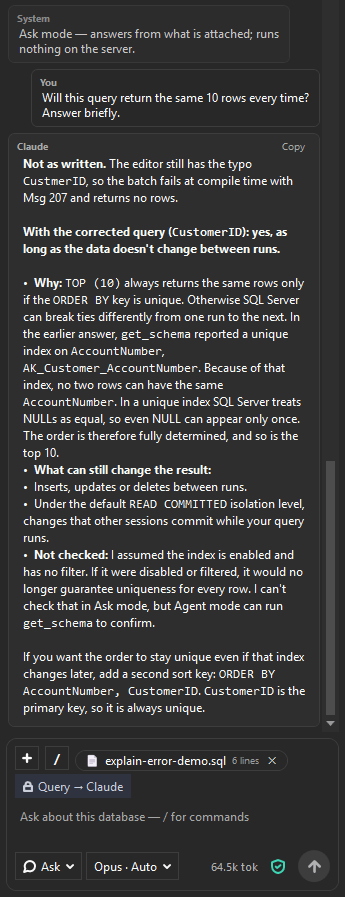
Agent and Ask
The mode button switches the chat between two modes:
- Agent (the default) — the AI may run SQL Sage's tools to check its answer: read the schema and the system catalogs, compile an estimated plan, run read-only queries. Writes always ask you first, and a query on your own tables runs only with the results consent.
- Ask — the AI answers from the attached query and this chat and runs nothing on the server. In Ask mode the AI gets no tools at all: no query, no schema read, no file read. If the model asks for a tool anyway, SQL Sage stops that answer and says that nothing ran. Incident triage is not available in Ask mode, because it reads the server.
Ask works with Claude Code and with your own Anthropic API key. Ask is not available with the Codex CLI: Codex also loads the tools (MCP servers) set up in your own Codex settings, so SQL Sage cannot guarantee that a Codex turn runs no tools. The mode menu shows Ask as unavailable with that reason, and nothing is sent if you try.
Model and reasoning effort
The button next to the mode (for example Opus · Auto) chooses the model and how hard it thinks. The list comes from the AI you use — your Claude Code or Codex CLI on this computer, or Anthropic for your own key — and only the effort levels the model supports are offered. SQL Sage never switches you to a more expensive model on its own.
To change the effort for one answer, type /effort high (or /effort auto) and press Send: it applies for the next answer only, and nothing is sent to the AI. /effort alone lists the levels of the selected model.
Bounded answers
An answer takes at most 12 steps (tool calls) on every provider. It also stops after 10 minutes on Claude Code and the Codex CLI; with your own API key only the step limit applies. When a limit is reached, SQL Sage keeps what was written so far and ends with Stopped after 12 steps — ask me to continue. (or Stopped after 10 minutes …). Reply continue to carry on from there.
Include results (opt-in)
Query results — your row data — stay on this computer unless you turn on Include results under the privacy shield next to Send and agree to a prompt. It is off by default.
- Turn on Include results under the shield.
- Right-click in a query window › Explain copied results (exactly what you copied from the grid) or Attach query results (re-run).
- A dialog shows how many rows and columns, the connection and the provider, and says that the cell values are not masked. Cancel is the default button; Send results sends them.
- Ticking Don't ask again for this session stops the prompt for this session, and also lets the AI run its own read-only queries on this connection and see their row values.
The consent is bound to the server, the database and the AI provider: it ends when any of them changes or when you turn Include results off, and has to be given again. Results you shared with one provider are not sent to another after you switch; they stay withheld until you choose Share previous results with …. Without the consent, a query the AI wants to run on your tables is not run: the AI sees only its column names and types.
What leaves this computer
The chip above the message box names what your next message sends and where: Schema + query → Claude in Agent mode with a query attached, Query → Claude in Ask mode, Schema + query + results → … after you shared results, Message → Claude when only your message goes, and → your endpoint with your own API key. Click the (i) next to it for the full list. In short:
- Sent: your messages and any file you attach; the query window's text or your selection, when attached; in Agent mode, schema metadata (the names and types of tables, columns, indexes and constraints) and what the AI's tools read from system catalogs, DMVs and Query Store, with literal values in the query text and plans they capture replaced unless you shared results with Don't ask again for this session; the server and database name, unless Mask names is on. In Ask mode, earlier messages of the chat are sent again, including what earlier Agent answers read. With a repository connected, the code of the files Claude reads from it (Connect repository).
- Not sent: query results, unless you share them as above. Your connection's credentials and the local audit log are never sent.
The token count and large requests
The number next to the shield, for example 46.1k tok, adds up the tokens your AI provider reports for the answers in this chat: input, output, and cached input read and written. It is approximate, and it counts cached input at full size, so it shows how much the chat carries rather than what it costs; the billing is your Claude or ChatGPT plan's, or Anthropic's for your own key. It appears after the first answer and starts again from 0 when you open another chat or restart SSMS; it is not saved.
Before a message is sent, SQL Sage estimates the size of what it put together — your message, the attached query and files, and any results you share — at about 4 characters per token. Over 40,000 tokens it asks first: This operation will use about … input tokens from your plan limit (threshold …). Continue? Cancel sends nothing and puts your message back in the box. The estimate does not include what the AI's tools read during the answer.
Saved chats
Chats are saved on this computer, so you can go back to one after SSMS restarts: pick it in the chat list at the top of the panel (switching waits until an answer has finished), or start a new one with the New chat button (+) next to that list. Delete this chat in the panel's Settings (⚙) deletes the open one.
- Encrypted. Each chat is one file in
%LOCALAPPDATA%\SqlSage\sessions, encrypted with Windows DPAPI for your Windows account. A chat holds your messages, the SQL and schema it carried and, if you shared them, query results. The file never leaves this computer. Since 0.22.0; a chat that an older version saved as plain text is encrypted the first time SQL Sage reads it. - Retention. In Settings under Chats, the list next to Save chats keeps a chat for 7 days, 30 days (the default), 90 days or 1 year after you last used it, or Keep until you delete it. Older chats are deleted when SQL Sage starts.
- Off. Save chats is on by default. Unticking it asks Stop saving chats and delete the chats saved on this computer?, with No as the default; Yes deletes the saved chats and stops saving. The open chat stays until SSMS closes. Deleting a file is not a secure erase.
18Connect repository (preview)
Connect your application's source folder to the chat, so Claude can read the code that uses your database next to its schema: where a query is built, what calls a procedure, how a table is used. It is a preview: it reads and searches code, and it does not yet prove which line of code produced a given query.
- Open: the + button next to the message box › Connect repository…. It is offered when the chat uses Claude Code and a query window is connected.
- Plan: Pro (a licence or the trial), because it works inside the AI chat. Claude Code only: not with the Codex CLI and not with your own API key.
- Sent to the AI: the content of the files Claude opens or finds with a search while it answers, after secret files are refused and recognisable secret values are redacted. Connecting itself sends nothing.
- AI usage: on your own plan through Claude Code, like any chat answer. Reading code can make an answer much larger; see large requests.
- Activate a query window connected to the database the code uses, with Claude selected for the chat.
- Click + next to the message box › Connect repository… and choose the folder.
- The dialog SQL Sage — connect repository? shows the folder and the provider and says what is sent. Cancel is the default. Connect connects at once: nothing is copied or indexed.
- A chip with the folder name appears next to the message box. Ask as usual; Claude looks into the code when the question needs it.
The repository is tied to the server and database of that query window. Disconnect with ✕ on the chip, or + › Disconnect repository (…). SQL Sage only reads your folder and never writes to it. The access ends when SSMS closes; after a restart, connect again.
How Claude reads the code
In every turn SQL Sage starts, Claude Code's own file, shell and search tools are switched off. With a repository connected, Claude gets SQL Sage's read-only repository tools instead, and they are its only way into the folder:
read_repo_filereads one file by its path inside the folder, up to its first 64 KB;search_reposearches the files for a pattern and returns at most 200 matching lines, each cut to 400 characters;find_callers,find_referencesandresolve_dilook for where a method is called, where a name is used and which class implements an interface. They search the text, so an empty answer is not proof that nothing uses it.
The tools read the live folder — nothing is copied — and stay inside it: an absolute path, a .. that leaves the folder, and symbolic links and junctions are refused. With Mask names on, the names it covers are replaced in what these tools return too.
What is never returned
- Secret files, by name, anywhere in the folder:
.env,*.envand.env.*;appsettings*.json,launchSettings.jsonandsecrets.json; keys and certificates —*.pem,*.pfx,*.p12,*.key,*.jks,*.ppk,id_rsa*,id_dsa*,id_ecdsa*,id_ed25519*;*.tfstateand*.tfvars;.npmrc,.pgpassand.netrc; and everything in a.git,.ssh,.aws,.azure,.gnupg,.kube,.dockeror.codexfolder.read_repo_filerefuses them, and a search skips them and tells Claude how many it skipped. - Secret values in the files it does return: private keys (
BEGIN … PRIVATE KEYblocks), AWS access key ids, Slack tokens, GitHub tokens (ghp_,gho_) and JSON web tokens are replaced with‹secret redacted›; the rest of the file is returned. - A search also leaves out build and tool folders such as
node_modules,bin,obj,dist,packages,.vs,.ideaandtarget, binary files such as.dll,.exe,.zip,.pngor.pdf, and files over 1 MB.
Honest limits
- A password in ordinary code or in a file whose name is not on the list above — for example a connection string in
web.configor in a.csfile — is not recognised and is sent as written when Claude reads that file. Connect only a folder you are comfortable sharing with Anthropic. .gitignoreis not used: a file that git ignores, such as a local settings file, can be read unless its name is on the list above.- Claude Code only. The Codex CLI's sandbox limits what the process may do, not which files it reads, so SQL Sage does not connect a repository there; with Codex the + menu says Repo context works with Claude; Codex support coming soon. Your own API key has no repository tools either.
- In Ask mode Claude reads no files, because Ask runs no tools.
- The audit log records connecting and disconnecting, with the folder and the provider; it does not list the files Claude reads.
- It reads code; it does not prove which line produced a query.
19Explain error
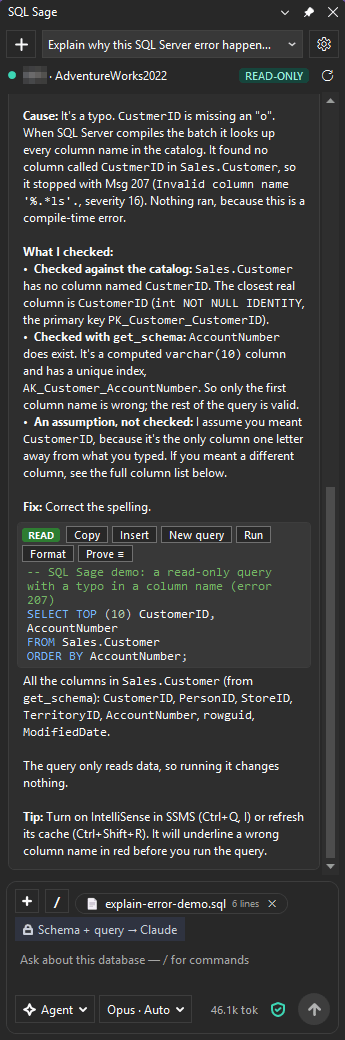
When a query fails in a query window, a bar at the top of that window says SQL Sage: the query failed - Msg 207: … with an Explain error button. SQL Sage first checks the error against your database and shows what it can prove; with a licence, the AI then explains the cause and returns a fixed query.
- Open: Explain error on that bar; right-click › Ask SQL Sage › Explain last error (no bar? copy the error from the Messages tab first); or Explain error on a failed entry in SQL Sage History.
- Plan: The proven part is Free, also after the trial. The AI explanation and the fixed query need a licence (Pro).
- Sent to the AI: nothing on SQL Sage Free. With a licence: the error with any quoted value withheld, the facts SQL Sage proved, the server and database names (replaced when Mask names is on) and the failing batch, up to its first 20,000 characters.
- AI usage: the explanation is one chat answer on your own plan or key; the proven part uses no AI.
What it proves
From the database's catalog, the T-SQL parser and the server's message templates: the missing column and the closest real name, the foreign key or CHECK constraint behind error 547, the key columns behind a duplicate key, the column size behind a truncation, the parser's position of a syntax error, and the template of the message from sys.messages. Each fact is marked Proven, Inferred or Not checked. When a query cannot be analysed, the card says so.
What is withheld before anything is shown or sent
- A value the server quotes in a message — a duplicate key, a value that failed to convert, a truncated value — is replaced. A message SQL Sage does not recognise, such as a user's RAISERROR or a message in another language, is reduced to its number, severity, state and line.
- Since 0.35.3, messages that quote part of your query text — an unclosed quotation mark, incorrect syntax near a value — have that part replaced too.
- From the editor, the failing batch is sent as it is in your window, like an attached query, and the request is sent as soon as the card appears. From SQL Sage History you first see exactly what will be sent, and literal values and comments in the batch are replaced with
?unless you tick Include literal values for that one send. Since 0.35.3 the catalog check there uses the original query, so masked literals no longer hide the table it reads. - Since 0.35.7, with Mask names on, a login, database or server that the error message names — for example Login failed for user '…' (Msg 18456), 916, 4060, 229 or 40613 — is replaced with a placeholder, even when SQL Sage had not read that name from the server.
20Change-Impact, Incident Mode, Prove-It
The Proven & Accountable checks. Their facts come from SQL Server itself, read by queries SQL Sage wrote rather than the AI, and every one of them only reads.
- Open: see each check below.
- Plan: Pro (a licence or the trial), even where no AI is involved.
- Sent to the AI: Change-Impact and Incident Mode run inside an AI answer, so what they read goes to the AI with that answer, masked by your privacy settings. Prove-It started with Prove ≡ sends nothing to the AI.
- AI usage: Change-Impact and Incident Mode use your own AI plan or key like any chat answer; Prove ≡ uses none.
Change-Impact
What breaks if you ALTER or DROP an object, before you do it. Start it in one of three ways:
- Attach or select the ALTER or DROP statement, type
/impactin the chat and press Send. - In the F5 Guard warning, click Show impact: it closes the warning without running the script and places the same request in the chat box. Nothing is sent until you press Send.
- Ask in Agent mode, for example What breaks if I drop dbo.Orders?
It reports, from the catalog of the current database: the rows at risk (the live row count, the data a DROP loses), the views, procedures, functions, triggers and constraints that reference the object, the foreign keys that point at it, and its indexes. A name without a schema resolves the way SQL Server resolves it: your default schema, then dbo. When the object does not exist, the answer says NOT FOUND instead of showing an empty list.
Honest limits. These lists are read from the catalog, not guessed, and the AI is asked to cite them; its summary is still an AI answer. It is static analysis: it cannot see dynamic SQL, application or ad-hoc queries (ORMs, jobs, reports), or references from other databases and linked servers, so an empty list means no static references were found, not that nothing breaks. The row count needs VIEW DATABASE STATE. It runs inside an AI answer, on your own plan.
Incident Mode
For “the server is slow right now”. Choose Tools › SQL Sage Tools › Incident triage (also in the panel's Settings) with a query window connected to that server. SQL Sage sends a fixed triage request; the AI first takes an incident snapshot and cites it for each conclusion. It runs inside an AI answer, in Agent mode only — not in Ask mode, which never reads the server.
The snapshot reads, in one pass: the blocking tree with the head blockers first — including an idle session that left a transaction open — the most expensive requests in flight, the top waits with their share, and on SQL Server a tempdb and log space signal. It reads server state (DMVs), never rows from your tables, and each read waits at most 5 seconds. What it reads includes other people's sessions — logins, client machines, programs and the SQL they run — which go to the AI with literal values replaced (unless you shared results) and with names replaced when Mask names is on. The audit log records Incident Mode by name, without its SQL.
Honest limits. It is a point-in-time snapshot: it shows now, not history, and wait counters count since the server started. Your login needs VIEW SERVER STATE (on SQL Server 2022 and later, VIEW SERVER PERFORMANCE STATE is enough); without it the snapshot says blocking is unknown and names the missing permission. On Azure SQL Database it covers the connected database only (VIEW DATABASE STATE), and running requests are visible only for your own connection, so “no blocking” there is not proof. For a free look without AI, use What's blocking now.
Prove-It
Did the rewrite change the result? On a SQL block the AI wrote, click Prove ≡. It compares the block with your original query: the selection in your active query window, or its whole text. A SQL Sage History entry has the same check, Prove ≡ with the editor's query, for READ entries.
SQL Sage runs both queries read-only inside one transaction that it always rolls back, compares a server-side fingerprint of the rows (order-independent, duplicates counted) and the logical reads, and answers EQUIVALENT, DIFFERENT or UNDECIDABLE, with the reason. The verdict is worked out by code, uses zero AI tokens, is shown only in the panel and is written to the audit log. A sample of the rows that differ is shown only with the results consent.
Honest limits. The proof covers your current data, not all possible data, and the order of the rows is not proven, even with ORDER BY. It proves one SELECT: a query with a leading WITH (CTE), several statements or SELECT … INTO is refused, and so are nondeterministic queries (GETDATE, NEWID, TOP without ORDER BY, TABLESAMPLE) and remote ones (OPENROWSET, OPENQUERY, OPENDATASOURCE) — those get UNDECIDABLE with the reason, never a guess.
21Is this slower than before?
For a query you ran, the card asks Query Store whether the statement got slower and why: a new plan, more lock waits, or the same plan running slower. The verdict is worked out by code from Query Store's own numbers, with no AI.
- Open: in SQL Sage History, select a query you ran and choose Is this slower than before?
- Plan: Pro. On SQL Sage Free the button shows one line from a quick Query Store lookup, for example Found in Query Store: 2 plans, 358 runs in 7 days. The comparison needs SQL Sage Pro.
- Sent to the AI: nothing. Only Explain on the card places a request in the chat box, and nothing is sent until you press Send.
- AI usage: none for the card; Explain is one chat answer on your own plan or key.
Before you start
- Query Store must be on in that database (it needs SQL Server 2016 or later). When it is OFF or READ_ONLY, the card says so.
- Your login needs
VIEW DATABASE STATEto read Query Store (on SQL Server 2022 and laterVIEW DATABASE PERFORMANCE STATEis enough) andSHOWPLANfor the estimated plan. - The card compares READ queries of one batch, whose text History saved and whose server and database are known. A script that switches database (USE, :CONNECT) is not compared.
How the query is found
SQL Sage compiles the entry's estimated plan (it is not executed; compiling can trigger an automatic statistics update) and looks up each statement's query_hash in Query Store. The statement text is compared by SHA-256 on the server, so the stored text is not read back. Every line of the card says how sure it is:
- Proven — the same
query_hashand the exact statement text (or its auto-parameterized text). - Inferred — only the shape matched.
query_hashis shared by unrelated statements, so the card says why the text could not match, for example because History masked a secret in it, kept only the start of a long script, or the batch declares variables. - Unresolved — not found or not checked, with the reason. With capture mode AUTO, Query Store records a cheap statement only after about 30 executions, so “not found” is not proof that it did not run.
The comparison uses the server time of completed runs over the last 7 days (aborted and failed runs are left out) and needs at least 5 regular runs of each plan. It can say: slower or faster since the plan changed, outside normal variability; the plan changed with no clear difference; too few runs to compare; the same plan with more lock waits (likely blocking, not the plan); the same plan, slower in the latest interval (more data, other parameter values or load); or no plan change. A verdict is never stronger than the link it rests on. Your own client time from History is shown on its own line.
On the card
- Show query opens the exact T-SQL behind every number in a new query window.
- Copy as note copies the card as Markdown for a ticket, each line with its trust in words and one Checked with SQL Sage line at the end. Nothing is sent.
- Script force plan … to new window only writes a script. A forced plan stays pinned until you unforce it, so review it; it runs only if you press F5.
- Explain (Pro, AI) places the card's lines and the query, with literal values and comments replaced with
?, in the chat box; nothing is sent until you press Send.
22Audit log and Export evidence
SQL Sage keeps a local record of the queries it runs or blocks, so you can show later what the AI and the guards did on a server.
- Where:
%LOCALAPPDATA%\SqlSage\audit\audit-YYYYMMDD.jsonl, one file per day (UTC). In the panel's Settings, under Audit & support: Audit SQL (on by default), Audit folder and Export evidence…. - Plan: every plan, SQL Sage Free included.
- Sent to the AI: nothing. The log never leaves this computer.
What it records
The AI's reads, the writes and DDL you confirm or cancel, Run, Prove-It runs, results you shared and the F5 Guard's warnings with your decision — each with the server, database, login, classification, the SQL, the row count and the model that acted. What is not logged is listed under Safety & privacy.
What the file is
- One JSON object per line, in plain text, not encrypted. Anyone who can read your Windows profile can read it. Mask names does not apply to it, because it never leaves the computer: server, database and login names are kept.
- Since 0.35.4, passwords and other secret values are replaced with
?before an entry is written, with the same rules as SQL Sage History; a statement whose secrets cannot be masked safely is recorded as withheld. Entries written by SQL Sage 0.35.3 and earlier still hold each statement as it ran, and so do evidence packs exported from them. If you ran a statement with a password in it on an older version, delete those files (theaudit-YYYYMMDD.jsonlfiles dated before your update); if that password is still in use, change it. Going back to 0.35.3 or older shows the newer entries as a broken chain. - Since 0.35.5, several SSMS windows writing to the same day's file keep it one intact chain, and an entry that cannot be written is noted in the diagnostic log instead of being dropped silently.
Tamper-evident, not tamper-proof
Each entry stores a SHA-256 hash of the previous entry's hash and its own content, so recomputing the chain shows when an entry inside a day's file was changed, removed or reordered. The chain has no secret key: anyone who can write to your profile can rebuild it, and it cannot show a deleted file or missing newest lines. It is evidence for a review, not a certified compliance record.
Export evidence
Export evidence… exports today's audit file only — today by UTC date — as a Markdown file and a JSON file side by side: every entry with its classification and approval, and the chain's verdict (intact, or the entry where it breaks). The pack names this computer and your Windows user name. With Mask names on, the server and database names in it are replaced; logins and the SQL are not. For another day, take its file from Audit folder.
23Mask names
Mask names replaces real names with placeholders in what SQL Sage sends to the AI provider, so the provider sees <server>, <database> or <login1> instead. A name keeps the same placeholder for the whole chat.
- Turn on or off: Mask names under the privacy shield next to Send. Off by default.
- Plan: every plan. It changes what the AI features send; SQL Sage Free sends nothing to an AI anyway.
- Sent to the AI: the same text, with the names replaced. The real names stay on this computer.
What it masks
- The server (under every name it goes by), every database on the server, logins, client machine names and file paths — a data, log or backup file keeps only its extension, for example
<file1>.mdf. Since 0.27.0 this covers your messages, the chat history, your own system prompt and the results of the tools the AI runs. - Since 0.35.1, inline completions: the text around the cursor is masked before it is sent, and the suggestion gets the real names back on this computer before it appears.
- Since 0.35.7, the logins, databases and servers that a SQL Server error message names — for example Login failed for user '…' (Msg 18456 or 18470), 916, 4060, 229 or 40613 — in Explain error, tool results and inline completions, even when SQL Sage had not read that name from the server.
- Explain error, Check this database's explanation and the AI actions of SQL Sage History and Now follow the same switch.
It fails closed
To know what to replace, SQL Sage reads the server's list of names: before the first tool of a chat runs, and once per window connection for inline completions. If it cannot read them, nothing is sent: the chat tool does not run and says why, and no AI completion is sent (the status bar says why).
What it does not mask
- Table and column names are not masked, nor are schemas, views, procedures and other object names: the AI needs them to write your SQL.
- It replaces the names it knows: the ones read from the server and the ones quoted by the error messages above. A name it never learned, for example another server's name you type in a message, is sent as typed.
- Values are another control: query results follow Include results, and cell values you share are never masked.
- SQL Sage History and the audit log keep the real names, because they never leave this computer.
24Inline completions (Alt+.)
An AI suggestion at the cursor in a query window, shown in grey: Tab accepts it as one edit, Esc dismisses it, and any other key leaves your text as it is. Off by default.
- Turn on or off: the panel's Settings (⚙) › Editor › Inline suggestions. Off by default. The box can be ticked only once SQL Sage finds Claude Code, the Codex CLI or your own Anthropic API key.
- Plan: Pro (a licence or the trial). The grey JOIN … ON and FROM alias suggestions are Free and use no AI (Related tables after JOIN).
- Sent to the AI: up to 2,000 characters before the cursor and 600 after it, from that query window, and nothing else — no schema and no results. With Mask names on, names in that text are replaced first.
- AI usage: each suggestion is one AI request: through Claude Code or the Codex CLI it counts against your own Claude or ChatGPT plan, and with your own API key Anthropic bills it.
When a suggestion is requested
SQL Sage uses the first of these it finds on this computer, whichever provider the chat uses: Claude Code, then the Codex CLI, then your own Anthropic API key.
- With Claude Code or the Codex CLI, a suggestion comes only when you press Alt+.. A placeholder (✦ AI thinking…) shows while it waits; starting the CLI can take several seconds, and after 20 seconds the request is dropped.
- Automatic suggestions as you type need your own Anthropic API key, and are used only when neither Claude Code nor the Codex CLI is installed. They appear at a pause in your typing; a request that takes longer than 2 seconds shows nothing.
- When Alt+. brings no suggestion, the status bar says why.
Masking and honest limits
- Since 0.35.1, with Mask names on, the server, database, login, client machine names and file paths in the sent text are replaced, and the suggestion gets the real names back on this computer. If the names cannot be read for the window's connection, the request is not sent and the status bar says why.
- SSMS IntelliSense comes first: no suggestion is shown while its list is open.
- SQL Sage's AI suggestions do not check for GitHub Copilot or other completion add-ins. If you use Copilot's completions in SSMS too, leave automatic suggestions off (Alt+. on Claude Code or Codex never fires by itself). The grey alias after FROM is the suggestion that steps aside for Copilot.
- A suggestion is a guess from the text around the cursor. Read it before you run it.
25Diagnostics & health
Just ask in plain language — SQL Sage runs the right server-side check itself (authored, deterministic queries; the model interprets the numbers, it doesn't invent them):
- “Scan this database / is it healthy?” → a one-shot health check: backups, failed Agent jobs, missing indexes, fragmentation, stale statistics, memory pressure, risky options.
- “Do I have backups / what's my RPO?” → per-database last full/diff/log with a risk flag.
- “Why is it slow?” → wait stats, live blocking, deadlock history, Query Store regressions, execution plan (estimated; actual only after you agree to share results — until then values in the plan are masked).
- “What depends on this view/table?” → impact analysis before you ALTER or DROP.
- “Who can access this / what are their permissions?” → role & permission audit with nested roles expanded.
- “Explain Msg 8134” → the real message from
sys.messages, then the cause and fix.
Every fix (reindex, UPDATE STATISTICS, CREATE INDEX, ALTER DATABASE) is presented as a script for you to review and run — never executed automatically.
26Safety & privacy
- Read-only by default. Statements are classified by the same parser SSMS uses (ScriptDom). Reads of system catalogs and DMVs run read-only on their own; a query the AI writes on your own tables runs only after you agree to share results for the session — until then it is not executed and the AI sees only its column names and types. Run on a READ block runs it only when you click it, in a new query window. DML and DDL require a confirmation dialog showing the exact SQL before anything executes — every time.
- Your data stays yours. Schema metadata and your query text go to the model; query result rows never do, unless you opt in per session. Mask names replaces server, database, login, client machine and file names with placeholders (off by default; table and column names are not masked).
- Local audit. The queries SQL Sage runs or blocks — the AI's reads, the writes and DDL you confirm or cancel, Prove-It runs, and the F5 guard's warnings — are appended to a local, hash-chained JSONL log under
%LOCALAPPDATA%\SqlSage\audit\, with server, database, login, classification, the SQL and the row count. The SQL is kept as it ran, with passwords and other secret values replaced with?(the same rules as SQL Sage History; a statement whose secrets cannot be masked safely is recorded as withheld; entries written by 0.35.3 and earlier are not masked). Local-only, no network egress. On by default; switch it off with Audit SQL in the panel. Not logged: schema look-ups (table lists, column definitions), a few read-only diagnostics (wait stats, plan-cache top queries, active requests, deadlock history) and repository reads; the health check and Incident Mode are logged by name, without their SQL. The file is plain text; what it can and cannot prove, and how to export it: Audit log & Export evidence. - No token custody. Sign-in lives in Claude Code / Codex on your machine; secrets are never in plaintext, the registry, or version control.
Full details in the Privacy Policy.
27Skills
SQL Sage ships reusable expert playbooks (deadlock-triage, blocking-triage, index-tuning, query-regression, db-health-review). They use the open Anthropic Agent Skills format (SKILL.md), and SQL Sage also reads your personal ~/.claude/skills folder — the same one GitHub Copilot in SSMS and Claude Code use, so a skill you write works across all three. Drop a SKILL.md in %USERPROFILE%\.claude\skills\<name>\ and it appears automatically.
28Troubleshooting
“Error 4551”, or Smart App Control blocked the installer
Since 0.21.0 the installer is signed end to end by LUMA SPÓŁKA Z OGRANICZONĄ ODPOWIEDZIALNOŚCIĄ: SqlSageSetup.exe, the setup program it unpacks to your %TEMP% folder and runs, the uninstaller and the SQL Sage DLLs. Installers of version 0.20.5 and earlier left that unpacked setup program unsigned, so Smart App Control, or an App Control for Business (WDAC) policy, could stop the installation with “Error 4551”. If you see it, you are running an old installer: download the current one from the download section and run it again. If your organisation's App Control policy still blocks it, ask your administrator to allow the publisher (see Publisher and signature).
“Windows protected your PC” / SmartScreen on install
SmartScreen judges a file's download reputation, not its signature, so it can warn about a new release even though the installer is Authenticode-signed and timestamped by LUMA SPÓŁKA Z OGRANICZONĄ ODPOWIEDZIALNOŚCIĄ. Click More info and check that Publisher shows that name (an unsigned file would read Unknown publisher; any other name: do not run it), then Run anyway. To check the file itself, compare Get-FileHash SqlSageSetup.exe -Algorithm SHA256 with the SHA-256 published in the download section.
The installer asks for administrator rights, or nothing seems to happen
The installer writes to SSMS's folder under Program Files, so it needs administrator rights. After you start it, it starts itself a second time with administrator rights, and that is when Windows shows the UAC prompt — two setup processes for a moment are expected. If you answer No, or the prompt stays hidden behind another window and you close the installer, nothing is installed: run SqlSageSetup.exe again and approve the prompt. If SSMS is still open, the installer asks you to close it: close every SSMS window, then click Retry. Retry checks again and goes on only when SSMS is closed; Cancel stops without installing anything. (Installers of 0.35.7 and earlier continued without checking again.)
Claude Code or the Codex CLI is not found, or “Failed to start Claude CLI”
Only the AI features need Claude Code or the Codex CLI (or your own Anthropic API key); the Free tools need neither. While Getting started is shown, its step 2, Connect an AI, looks for them again each time you come back to the panel, so a CLI you install while SSMS is open is usually found without a restart (Settings ⚙ › Getting started brings the card back). SQL Sage looks in these places, in this order:
- Claude Code:
claude.exe,claude.cmdorclaude.batin each folder on the PATH SSMS started with, then%USERPROFILE%\.local\bin\claude.exe(where Claude Code's native installer puts it),%LOCALAPPDATA%\Microsoft\WinGet\Links\claude.exeand%LOCALAPPDATA%\Programs\claude\claude.exe, then (in versions after 0.35.7) the npm folder%APPDATA%\npm, wherenpm install -gputsclaude.cmd. - Codex CLI:
codex.cmd,codex.exe,codex.batorcodex.ps1in each folder on the PATH SSMS started with, then the npm folder%APPDATA%\npm.
SSMS keeps the PATH it was started with. If the CLI is somewhere else — for example in a folder that was added to PATH while SSMS was open — restart SSMS once so that it sees the new PATH. Found but not signed in: use the sign-in button in Getting started and finish in the console window. If it was working and stopped, your CLI session may have expired: sign in again.
At the end of setup, the installer tells you when it found neither CLI. It looks in the same places as the panel (the list above), but only for the account that runs setup — an administrator account, or SYSTEM under a deployment tool — so the message can appear although your own account has a CLI. The message is informational; the installation is complete. Trust what Getting started says: the panel looks again for each Windows user. (Installers of 0.35.7 and earlier looked only for claude.exe and codex.exe on the PATH, so a CLI installed with npm — claude.cmd, codex.cmd — brought the message up as well.)
Proxy, firewall or no internet
- SQL Sage's own requests — the update check, the signed model list, the licence check and the download count — use the Windows proxy settings. When they cannot get through, Check for updates says Couldn't check, that it couldn't reach the server, and to check the internet connection or proxy. The host names to allow are listed in Network endpoints.
- AI requests do not go through SQL Sage's servers. Claude Code and the Codex CLI connect to Anthropic or OpenAI with their own proxy settings (see their documentation). SQL Sage starts them with the environment SSMS started with, so after you change a proxy environment variable, restart SSMS. With your own Anthropic API key, SSMS connects to Anthropic directly, with the Windows proxy settings.
- A proxy that asks for a sign-in has not been tested.
- Offline: the Free tools need only your SQL Server. The trial is counted on this computer. A licence check that cannot reach the server keeps your current licence state; a subscription keeps the AI features through the date it is valid through and then for up to 14 days while the renewal cannot be confirmed; a perpetual licence has no end date. Details: Licensing FAQ.
Azure SQL: SQL login and Microsoft Entra
When a query window is open, SSMS hides the password of its connection, so SQL Sage signs its own sessions in with the window's credentials, kept in memory only and never written to a connection string or a log. Since 0.31.1 this works for SQL Sage Search and the JOIN list, and since 0.32.1 for the chat's tools, with a SQL login, Microsoft Entra Password or Service Principal. If those fail on an older version, update.
The other Microsoft Entra methods are mapped to the matching sign-in: MFA (Universal) and Interactive to Interactive, which uses SSMS's own sign-in, and Integrated, Managed Identity and Default to themselves; Device Code and any method SQL Sage does not know fall back to Entra Default, which reuses a cached Azure sign-in. Not every Entra variant has been verified on SSMS 22 yet — if yours does not connect, send us Copy diagnostics. Since 0.33.2, with Mask names on, SQL Sage no longer reads sys.master_files on Azure SQL Database (error 208 at the start of a chat).
Now or Incident Mode says blocking is unknown
To see other sessions, your login needs VIEW SERVER STATE — on SQL Server 2022 and later, VIEW SERVER PERFORMANCE STATE is enough. On Azure SQL Database the database user needs VIEW DATABASE STATE in the user database (not in master); on Basic, S0, S1 and elastic pools only the server admin, the Microsoft Entra admin or a member of ##MS_ServerStateReader## can see them. Without the permission, SQL Server silently shows only your own session, so SQL Sage says blocking is unknown rather than zero. What's blocking now offers Copy GRANT script to new window for a DBA to review and run; SQL Sage never runs it. The same permission applies to Incident Mode.
SQL Sage Search says “Not indexed yet” or “No query window is connected.”
Search reads the server of your active query window. No query window is connected. means it has no connected window to follow: click into a query window that is connected, or press Ctrl+Alt+D there. Not indexed yet means the first read of that server has not finished; once it starts, the status line shows Indexing N/M databases. Since 0.31.2 a Search window that SSMS restores when it starts follows the active query window by itself. While a search is on screen, Search never switches to another server silently: click Use <server>. Refresh reads the changed databases again. More: SQL Sage Search.
The assistant doesn't know my server/database
Make sure a query window is connected and active, or pin the chat to it (📌). The connection bar at the top of the panel always shows which server/database the answers use.
The panel didn't open
Open it from View → Other Windows → SQL Sage. If it's missing, restart SSMS once after installing so it merges the extension.
Right-click actions aren't in the menu
Restart SSMS once after an update so the menu re-merges. The actions are also under the Tools menu.
Trial / licence
The 30-day trial, with all features and no credit card, starts with your first AI answer or 14 days after you first open the panel. A licence check that cannot reach the server keeps your current state; a subscription past its end date keeps AI for up to 14 days while the renewal cannot be confirmed. Details: Getting started, trial & licence.
An answer ends with “Stopped after 12 steps — ask me to continue”
Every answer is bounded: at most 12 steps (tool calls) on every provider, and 10 minutes on Claude Code and the Codex CLI. When a long investigation hits the bound, SQL Sage keeps what was written so far and stops the run. Reply continue to carry on from there.
How to report a problem
Click Copy diagnostics in the panel's settings row. SQL Sage first shows the whole report (“This is what will be copied”) and copies it only when you click Copy to clipboard. It lists the SQL Sage, SSMS, Windows and CLI versions, the provider, model and effort, your plan, the update and policy state, the panel switches and the last 20 lines of the local diagnostic log reduced to time, component and numbers. It contains no licence key, e-mail, SQL text, query results, server or database names, or error message text, and nothing is sent automatically. Paste it into GitHub Discussions or an e-mail to support@lumasoft.pl together with what you did and what you expected. If you add a screenshot or a query, remove server, database and login names, data and passwords from it first — GitHub Discussions is public.
Where the logs are
SQL Sage writes a diagnostic log to %LOCALAPPDATA%\SqlSage\diag.log only when something fails (for example, the panel does not start), or for a support session when the environment variable SQLSAGE_DIAG is 1 when SSMS starts. To turn the full trace on: set the user environment variable (for example setx SQLSAGE_DIAG 1 in a command prompt), start SSMS again, reproduce the problem, then delete the variable — it is read once, when SSMS starts. The full file can contain SQL text, server, database and object names and error messages, so read it before you share it and send it only when support asks; Copy diagnostics includes only its last 20 lines, reduced to time, component and numbers. The local audit log is in %LOCALAPPDATA%\SqlSage\audit\ (Audit log).
Still stuck? See the FAQ on the home page.
29Update & uninstall
Update: the panel checks for new versions and shows a dismissible banner; its Download button opens the latest signed installer — close SSMS first, then run it (it replaces the previous build, and asks you to close SSMS if it is still running). Nothing is installed silently. The panel checks when it starts and then about every 6 hours; Check for updates checks now, and the Check for updates automatically switch turns the automatic checks off. What changed in each version, including security and privacy fixes: see the changelog.
Minimum supported version: we may set a minimum supported version of SQL Sage, for example when an AI provider or a security fix requires it. A version older than the minimum supported version may stop working, in whole or in part, until you update it; the update is free under your licence. Unless a security fix needs it at once, the panel first shows Update required by … with the date, and everything keeps working until then; after it, the panel shows only the update card, and the F5 Guard warnings keep working. While perpetual licences limited to version 1.x exist, the minimum supported version is never higher than the latest 1.x release. The rule is in section 11 of the Terms.
Uninstall:
- Close SSMS.
- Open Windows Settings → Apps → Installed apps (Windows 10: Apps & features), find SQL Sage for SSMS 22 (publisher LumaSoft) and choose Uninstall. The same uninstaller is also at
C:\Program Files\Microsoft SQL Server Management Studio 22\Release\Common7\IDE\Extensions\SqlSage\unins000.exe. - The uninstaller removes the extension files and refreshes SSMS's extension registration, so SSMS no longer loads SQL Sage.
Your own data is not deleted: settings, saved chats, SQL Sage History with its recently closed tabs, the audit log, the database-check results, the usage counters and the licence and trial files stay under %LOCALAPPDATA%\SqlSage, and two trial dates stay in the registry under HKCU\Software\LumaSoft\SqlSage. Delete that folder if you want them gone (it also removes your stored licence key). The full list is in the Privacy Policy; uninstalling for a whole organisation: For IT.
AI usage not included: SQL Sage needs your own AI access (Claude Code on a paid Claude plan, a ChatGPT plan that includes the Codex CLI, or your own Anthropic API key). See pricing
30For IT and administrators
What SQL Sage puts on a computer, what it connects to, what it keeps on disk and what an organisation can control today. For the full list of local files and network requests, the Privacy Policy is the reference.
What the installer installs, and where
- One folder inside SSMS 22's extension folder:
C:\Program Files\Microsoft SQL Server Management Studio 22\Release\Common7\IDE\Extensions\SqlSage. The folder is fixed; the installer does not ask for one, and it stops with a message when SSMS 22 is not installed in that standard location. - It needs administrator rights, and it installs for every Windows user of the computer. Each user's own data is kept in that user's profile (see Data at rest).
- After copying the files it runs
Ssms.exe /updateconfiguration, so that SSMS registers the extension; the uninstaller runs it again after removing the files. - Windows lists it as SQL Sage for SSMS 22, publisher LumaSoft, under the uninstall key
{9E5B7A31-6C2D-4F58-9A0E-SQLSAGE000001}_is1. - Nothing else: no service, no scheduled task, no driver and no startup entry. The extension runs only inside SSMS.
- SQL Sage connects only to the SQL Servers that your SSMS query windows are connected to, with the window's own sign-in.
Publisher and signature
Since 0.21.0 everything the installer runs or installs from us is Authenticode-signed and timestamped: SqlSageSetup.exe, the setup program it unpacks to %TEMP%, the uninstaller unins000.exe and the SQL Sage DLLs. The signer is LUMA SPÓŁKA Z OGRANICZONĄ ODPOWIEDZIALNOŚCIĄ (LUMA sp. z o.o., Warszawa, PL), with a code signing certificate issued by Certum (Certum Code Signing 2021 CA) and a Certum timestamp. Check a file with Get-AuthenticodeSignature in PowerShell. Every release is a new file, so an App Control policy that should let updates through needs a publisher (signer) rule, not a file-hash rule. The SHA-256 of the current installer is published in the download section and in version.json.
Unattended (silent) install
The installer is built with Inno Setup and takes its standard switches. Run it with administrator rights (an elevated command prompt, or a deployment tool that runs it as SYSTEM); started without them, it asks Windows for them, and no switch hides that UAC prompt.
SqlSageSetup.exe /VERYSILENT /SUPPRESSMSGBOXES /NORESTART /LOG="C:\Windows\Temp\SqlSageSetup.log"
With /SUPPRESSMSGBOXES each of the installer's own messages takes a fixed answer instead of waiting for a click:
- SSMS 22 is not in the standard location: setup stops before installing anything, with exit code 1.
- SSMS is running: setup stops before installing anything, with exit code 1, because SSMS may hold the files open. Close SSMS on the computer, then run it again.
- No Claude Code or Codex CLI found for the account that runs setup (the usual case under SYSTEM): only information. The installation completes, with exit code 0. SQL Sage Free needs no CLI, and the panel looks for the CLI again for each Windows user when it opens in SSMS.
Exit code 0 means installed. Exit code 1 means setup stopped before installing; the log file records which message caused it. Any other non-zero code is one of Inno Setup's standard exit codes. No restart is needed. Installers of 0.35.7 and earlier showed these three messages with a plain message box, which is not suppressed by /SUPPRESSMSGBOXES and waits for a click even with /VERYSILENT: use a later installer for an unattended install.
The fixed answers and exit codes were checked against Inno Setup's documentation and in a test setup that installs nothing; the SQL Sage installer itself has not been tested end to end on a deployment tool (Intune, Configuration Manager and the like). There is no MSI package.
Uninstall
Close SSMS, then uninstall SQL Sage for SSMS 22 from Windows Settings › Apps, or run unins000.exe from the install folder above. Without prompts: unins000.exe /VERYSILENT /SUPPRESSMSGBOXES /NORESTART (the uninstall script shows no messages of its own; not tested unattended). The uninstaller removes the extension files and SSMS's registration. Each user's data stays in %LOCALAPPDATA%\SqlSage, and two trial dates in HKCU\Software\LumaSoft\SqlSage; delete both per user to remove everything, including the stored licence key.
Network endpoints
These are all the requests the extension itself makes to our servers. None of them carries a name, an e-mail, a device identifier, a query, schema or results.
| Address | When | What it carries |
|---|---|---|
https://sqlsage.lumasoft.pl/version.json | Update check: when the panel starts, about every 6 hours, and on Check for updates | Nothing; a static file |
https://sqlsage.lumasoft.pl/models.v2.json | When the panel starts, when you switch provider, and for inline completions | Nothing; a static, signed list of models |
https://api.lumasoft.pl/license/validate | For a paid licence: when the panel starts and after a key is entered; since 0.36.0 also about every 12 hours while SSMS stays open, when the licence state changes (at most once every 10 minutes) and on Check now; after 0.36.0 also when SSMS starts and loads SQL Sage | The licence identifier only, never the key |
https://api.lumasoft.pl/dl/hit | Only when someone clicks Download in the update banner | The product name, for an anonymous download count |
https://sqlsage.lumasoft.pl/download/SqlSageSetup.exe | Opened in the browser by that Download button | The installer |
https://sqlsage.lumasoft.pl/models.json | Only by SQL Sage 0.19.x and earlier | Nothing; a static file |
They use the Windows proxy settings, and these host names stay as they are for every installed version, also after the website itself moves to sqlsage.lumasoft.org: they answer directly and never redirect. AI requests do not go through us. Claude Code and the Codex CLI connect to Anthropic or OpenAI under the user's own account (their documentation lists the hosts to allow); with the user's own Anthropic API key, SSMS connects to https://api.anthropic.com.
Data at rest
- Per user, in
%LOCALAPPDATA%\SqlSage. Saved chats, SQL Sage History with its recently closed tabs, the licence key, the trial dates and an own API key are encrypted with Windows DPAPI for that Windows account: other Windows users cannot read them, programs running as that user can. - The audit log (
audit\audit-YYYYMMDD.jsonl) is plain text, not encrypted. Since 0.35.4, passwords and other secret values are replaced with?before an entry is written; entries written by 0.35.3 and earlier hold each statement as it ran. See Audit log. - Settings (
settings.json), the database-check results and the usage counters are plain text and hold no query results. The diagnostic log is plain text too and can contain SQL text and names (Where the logs are). - Every file and what it holds: Privacy Policy, data stored on your machine.
Machine policy
SQL Sage reads two values under HKLM\SOFTWARE\Policies\LumaSoft\SqlSage, both REG_DWORD, when SSMS starts:
DisableQueryHistory— any value other than 0 turns SQL Sage History off for every user of the computer and deletes what was saved;MaxQueryHistoryRetentionDays— a positive number caps how many days History keeps queries.
Details: machine policy for History. There is no machine policy for Mask names, Include results, the audit log, inline completions or the update check today: those are each user's settings in %LOCALAPPDATA%\SqlSage\settings.json.
31Licensing FAQ
How do I move SQL Sage to a new computer?
Install SQL Sage on the new computer and enter the same licence key with Enter license key. The key is not tied to a computer, so there is nothing to deactivate on the old one. The stored key is encrypted for your Windows account, so copying the %LOCALAPPDATA%\SqlSage folder to another computer does not bring it along. To remove SQL Sage from the old computer, uninstall it there and delete that folder.
I lost my licence key. How do I get it again?
Open the purchase page, enter the e-mail address you used at checkout and click Email me the key: we e-mail every key we hold for that address, except a revoked one. The page answers the same whether or not we hold a key for that address, and it accepts only a few requests at a time. You can also write to support@lumasoft.pl from that address, with your order number.
Can I get a refund?
Yes. A one-time (perpetual) purchase, and the first payment of a subscription, have a 14-day money-back guarantee; a subscription can be cancelled at any time and stays active until the end of the period you paid for. Write to support@lumasoft.pl with your order number or checkout e-mail, or use the receipt or customer portal from Paddle; Paddle, the Merchant of Record, returns the money. After a refund the licence is revoked: the AI features stop from your next AI request once SQL Sage's online check reports it (when it is checked), and the Free tools keep working. The full terms are in the Refund Policy.
Does SQL Sage work offline?
The Free tools need only your SQL Server, not the internet, and the trial is counted on this computer. A perpetual licence works offline with no end date. A subscription works offline through the date it is valid through; if its renewal cannot be confirmed online after that date, the AI features keep working for up to 14 more days, and the panel says until when. A licence check that cannot reach our server keeps your current licence state (when it is checked). The AI features themselves need Claude Code, the Codex CLI or Anthropic to be reachable.
What happens when the trial ends?
SQL Sage keeps working as SQL Sage Free: SQL Sage History, What's blocking now, Search, Find usages of column, the JOIN list, Check this database, F5 Guard and the editor commands stay, with your settings and history. The AI features and the Pro checks need a licence, and the panel shows a SQL Sage Free card with Enter license key and Buy SQL Sage. The 30-day trial starts with your first AI answer, or 14 days after you first open the panel, whichever comes first.
How many seats does a licence include?
Personal: 1 seat. Team 3: 3 seats. Team 10: 10 seats. One seat is one person, on all of their computers. That is the same for a one-time purchase and a subscription. SQL Sage has no per-computer activation and its licence check sends only the licence identifier, so keeping within the seats you bought is up to you, as section 4 of the Terms says.
32Privacy FAQ
What leaves my computer when I use an AI feature?
What the chip above the message box names for your next message — for example Schema + query → Claude in Agent mode or Query → Claude in Ask mode; the (i) next to it lists it in full. In short: your message, the attached query and, in Agent mode, schema metadata and what the AI's tools read from system catalogs and DMVs. Inline completions send up to 2,000 characters before the cursor and 600 after it; Explain error sends the error, the facts SQL Sage proved and the failing batch. Your connection's credentials and the local audit log are never sent. Details: What leaves this computer.
Do the Free tools send anything?
Nothing to an AI. SQL Sage Free makes no AI calls: SQL Sage History, What's blocking now, Search, Find usages of column, the JOIN list, Check this database, F5 Guard and the editor commands read your server with your query window's own sign-in and send nothing to Anthropic or OpenAI. SQL Sage's own requests to our servers — the update check, the signed model list and, for a paid licence, the licence check — carry no query, schema or results (Network endpoints).
Are my query results sent to the AI?
Not unless you turn on Include results under the privacy shield next to Send and agree to its prompt, where Cancel is the default. The consent is bound to the server, the database and the AI provider, and ends when any of them changes. Cell values you share are not masked. Without the consent, a query the AI wants to run on your tables is not run: the AI sees only its column names and types. Details: Include results.
What does Mask names hide?
With Mask names on (under the privacy shield; off by default), the server, every database on the server, logins, client machine names and file paths are replaced with placeholders such as <server> before anything is sent, and the real names stay on this computer. Table and column names are not masked, because the AI needs them to write your SQL. If SQL Sage cannot read the names it should replace, nothing is sent. Details: Mask names.
Are my history and the audit log sent anywhere, and are they encrypted?
Neither leaves this computer, and no AI tool can read your History. SQL Sage History, its recently closed tabs and your saved chats are encrypted with Windows DPAPI for your Windows account. The audit log is plain text, not encrypted. Since 0.35.4, passwords and other secret values are replaced with ? before an entry is written; entries written by 0.35.3 and earlier are not masked.
The full statement is the Privacy Policy.